Research reviewed: September 18, 2026. Storage-testing tools can write large amounts of data and may erase or overwrite files. Test a new or empty card/drive whenever possible, back up anything important first, and double-check that you selected the correct removable drive before formatting or using destructive tools.
A brand-new microSD card or USB flash drive can look completely normal.
Windows sees it. Your phone sees it. The label says 128GB, 512GB or 1TB. You copy a few photos to it and everything appears fine.
That still does not prove the storage is trustworthy.
Some counterfeit or defective flash devices can report a much larger capacity than the physical memory inside them. They may work normally at first, then begin corrupting or overwriting old files once you exceed the real capacity.
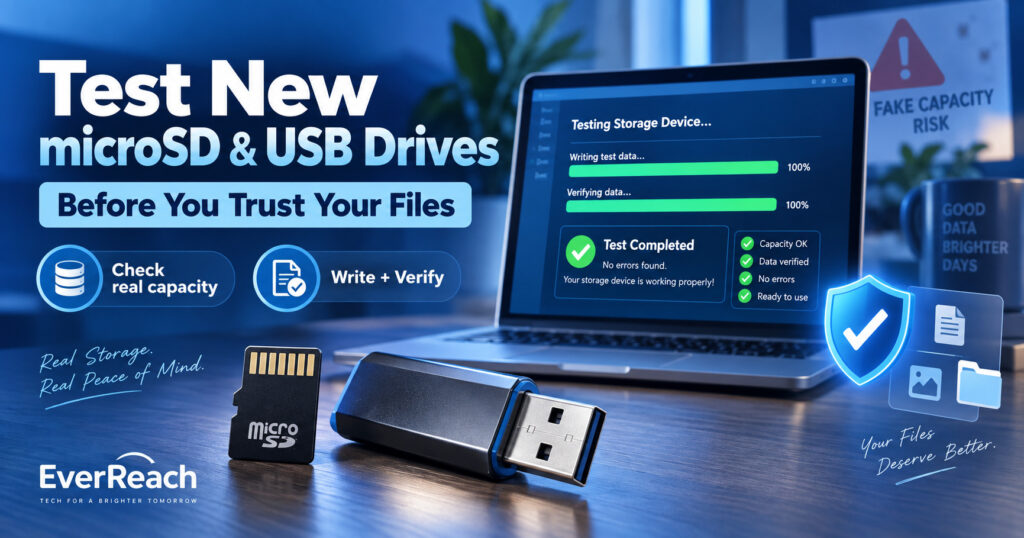
The quick answer: Before trusting a new microSD card or USB drive with important files, verify the full usable capacity by writing data across the drive and reading it back. On Windows, H2testw is a practical choice. On macOS and Linux, F3 provides the same basic write-and-verify approach.
Why checking the capacity shown in Windows is not enough
A fake flash controller can tell the operating system that a device has more storage than it physically contains.
For example, a fraudulent “128GB” drive might contain only a fraction of that capacity. The file system can still appear to have plenty of free space. Files may even appear in folders with the correct names and sizes.
The failure becomes obvious only after enough data has been written. New writes may overwrite earlier data or read back as corrupted.
That is why a proper capacity test does two things:
- writes known test data across the available storage; and
- reads that data back to confirm it is still correct.
Simply checking Properties, running a quick format or copying one movie does not verify the entire device.
First: a smaller number in Windows does not automatically mean the drive is fake
This is an important distinction.
Storage manufacturers normally advertise capacity using decimal units:
- 1GB = 1,000,000,000 bytes
- 128GB = 128,000,000,000 bytes
Operating systems may display the same bytes using binary-style calculations. SanDisk explains that a 128GB drive contains 128 billion bytes, while operating-system reporting can make the displayed number look smaller. Some space can also be reserved for formatting, firmware and other internal functions.
So a genuine 128GB card showing roughly 119GB/GiB-class usable capacity is not, by itself, evidence of fraud.
The warning sign is a device that cannot actually store and return data throughout its advertised usable range.
The EverReach test workflow
For a new card or USB drive, use this sequence before putting irreplaceable files on it:
- Inspect the packaging, markings and seller.
- Confirm the device reports a plausible capacity.
- Back up anything already on it.
- Run a full write-and-read capacity verification.
- Check performance separately if speed matters.
- Format it appropriately for the device that will use it.
- Only then start storing important files.
Step 1: inspect the card, drive and packaging
A software test can tell you whether the storage behaves correctly, but physical clues are still worth checking.
Look for:
- misspelled brand names or strange fonts;
- poor printing or misaligned labels;
- missing model or serial information;
- packaging that does not match the manufacturer’s normal retail packaging;
- a capacity or speed combination that seems unrealistic for the price; and
- seller descriptions that avoid clearly naming the brand even though a brand logo appears in the photos.
SanDisk publishes examples of counterfeit memory-card markings and advises buyers to purchase through authorized distributors and retailers.
Physical appearance alone is not proof either way. A sophisticated counterfeit can look convincing, which is why the capacity test matters.
Step 2: check the reported capacity—but treat it only as a first check
On Windows:
- Insert the microSD card through a reliable card reader, or plug in the USB drive.
- Open This PC.
- Right-click the removable drive and choose Properties.
- Check the reported capacity.
If a “128GB” device appears as only 16GB, something is obviously wrong unless the device has been partitioned unusually.
But if it appears around the expected size, you still have not proven that the memory is really there.
Step 3: test the entire capacity on Windows with H2testw
For Windows users, EverReach recommends H2testw as the simplest established option for this specific job.
H2testw is a free portable tool from c’t/Heise. It writes test files across the available space, then reads them back and checks whether the data is intact.
Before running it:
- use a new or empty drive if possible;
- back up any files you care about;
- close applications using the drive; and
- make sure you select the correct drive letter.
Basic H2testw procedure
- Download H2testw from the official Heise download page.
- Extract and run the program.
- Select English if needed.
- Click Select target and choose the microSD/USB drive.
- Select the option to test all available space.
- Start the Write + Verify test.
- Let both phases finish.
For a large card or slow USB device, the test can take hours. That is normal. You are asking the computer to write and then reread almost the entire usable capacity.
If H2testw reports the expected tested capacity with no corrupted, overwritten or lost data, that is a strong sign that the storage capacity is real and readable.
If it reports substantial corruption, overwritten data, or a much smaller amount of valid storage than advertised, do not trust the device with important files.
What a fake-capacity result can look like
Imagine a device sold as 128GB but containing only around 8GB of real flash memory.
The controller may allow the operating system to address the full claimed space. H2testw can continue writing test files, but after the genuine memory has been exhausted, later writes may overwrite previously written blocks.
During verification, the tool then discovers that much of the data cannot be read back correctly.
This is exactly why copying only 2GB or 5GB to a supposedly 128GB card is not a meaningful full-capacity test.
macOS and Linux: use F3
F3 — Fight Flash Fraud is an open-source tool designed to test flash cards and drives by writing pseudorandom data and reading it back.
The normal mounted-volume workflow uses:
f3write /path/to/your/drive
f3read /path/to/your/drive
f3write fills the available space with test files. f3read then checks that those files can be read back correctly.
F3 also includes advanced raw-device tools such as f3probe. Those operate directly on block devices and can be destructive. They are unnecessary for most consumers and are easier to misuse, so this EverReach guide recommends the simpler mounted-volume write/read method unless you already understand raw-disk device naming and data-destruction risk.
Do not confuse a capacity test with a speed test
A drive can have genuine capacity and still be much slower than advertised.
Capacity verification asks:
“Can this device really store all the bytes it claims?”
A performance test asks:
“How fast can it read and write them?”
Those are separate questions.
For SD and microSD cards, the SD Association defines speed classes as minimum sustained sequential-write performance under specified conditions. For example:
| Marking | Specified minimum sequential write class |
|---|---|
| C10 / U1 / V10 | 10MB/s |
| U3 / V30 | 30MB/s |
| V60 | 60MB/s |
| V90 | 90MB/s |
A genuine card can also benchmark below its headline “up to” read speed if the card reader, USB port or host device is the bottleneck.
So do not declare a card fake only because it does not reach the large marketing number printed on the package. Check what that number actually represents, what speed class is guaranteed, and whether your reader supports the required interface.
A2, V30, U3 and other symbols are not capacity guarantees
microSD cards can carry several performance symbols at the same time.
- U1 / U3 refer to UHS Speed Class.
- V10 / V30 / V60 / V90 refer to Video Speed Class.
- A1 / A2 refer to Application Performance Class for random and sequential workloads.
Those markings describe performance classes. They do not prove that the card contains the advertised amount of flash memory.
A counterfeit label can print the same symbols. Verify capacity separately.
What about CHKDSK, Error Checking or a quick format?
Useful—but they answer different questions.
Windows Error Checking / CHKDSK
These can detect file-system problems and some storage errors. They do not normally prove that every advertised gigabyte physically exists.
Quick Format
A quick format recreates file-system structures. It does not fill and verify the whole flash device.
Full-capacity write/read test
This is the important test for fake-capacity storage because it forces the device to demonstrate that data can actually be written throughout the available range and read back correctly.
Format the microSD card properly after testing
After a successful test, remove the H2testw/F3 test files and format the card for its intended device.
For SD, SDHC, SDXC and SDUC cards, the SD Association recommends its own SD Memory Card Formatter instead of generic operating-system formatting tools because it is designed around the SD file-system specification.
The SD Association currently lists:
- SD: up to 2GB;
- SDHC: over 2GB through 32GB;
- SDXC: over 32GB through 2TB; and
- SDUC: over 2TB through 128TB.
Your camera, dashcam, drone, handheld console or other device may also recommend formatting the card inside the device itself. Follow that device manufacturer’s instructions when applicable.
Test using a good card reader
A poor reader can create misleading results.
If a known-good card disconnects, produces I/O errors or runs unusually slowly in one reader, repeat the test with another reliable reader or USB port before blaming the card.
For high-speed cards, the reader also needs to support the appropriate SD/UHS interface if you want meaningful performance numbers.
Capacity verification is less demanding than maximum-speed benchmarking, but an unstable reader can still produce errors.
What if the test fails?
If a brand-new card or USB drive fails a full write/read verification:
- Stop putting important files on it.
- Save a screenshot or copy of the test result.
- Photograph the card/drive, packaging and serial/model markings.
- Keep the order page, invoice and seller conversation.
- Use the marketplace or retailer’s return/refund procedure promptly.
Do not “solve” a fake 256GB card by deciding to use only the 16GB or 32GB that seems to work. Even if specialist tools can identify an apparent real capacity, a fraudulent or unreliable device has already failed the most important test: trust.
For help choosing safer sellers and understanding local versus seller warranty, see our guide to Official Stores, Authorized Sellers and Gray Imports.
What if the capacity passes but errors appear?
A genuine-capacity flash device can still be defective.
If the full device is the expected size but H2testw or F3 finds unreadable or corrupted test data, treat the device as failing.
Flash memory is supposed to preserve the data you write. A new device that already produces verification errors should not be trusted simply because its capacity is technically genuine.
Should you test cards bought from an official store?
EverReach recommends testing important removable storage even when you bought it from a reputable or authorized seller.
An authorized purchase greatly reduces counterfeit risk, but it cannot make manufacturing defects, shipping damage or early failure impossible.
The cost of a full test is mostly time. The cost of discovering a bad card after a vacation, wedding, dashcam incident or work project can be much higher.
What should you test especially carefully?
Be particularly cautious with storage intended for:
- camera photos and video;
- dashcams and CCTV;
- drones and action cameras;
- game-console storage;
- phone photos and application storage;
- work documents;
- backup copies; and
- boot or recovery media.
For continuous-recording devices such as dashcams and security cameras, also check whether the manufacturer recommends a high-endurance card rather than a standard consumer card.
One tested card is still not a backup
A card that passes H2testw or F3 today can still fail later.
Flash storage wears out. Controllers fail. Cards can be lost, physically damaged or corrupted by unsafe removal.
So capacity testing should be part of your storage strategy—not the whole strategy.
If a file matters, keep another copy somewhere else.
A verified microSD card is storage. It is not, by itself, a backup plan.
EverReach’s 10-minute buying check — plus the full test
Before trusting new flash storage:
- Check whether the seller and price are credible.
- Inspect packaging and markings.
- Confirm the displayed capacity is plausible.
- Understand that 128GB will not necessarily display as exactly 128 “GB” in the operating system.
- Back up anything already on the device.
- Run H2testw on Windows or F3 on macOS/Linux.
- Test all available space, not just a few gigabytes.
- Reject any new device that reports corruption or fake capacity.
- Format it appropriately after a successful test.
- Keep important data in more than one place.
Frequently Asked Questions
How can I tell if a microSD card is fake?
The most reliable consumer test is not appearance alone. Run a full-capacity write/read verification with a tool such as H2testw on Windows or F3 on macOS/Linux. A fake-capacity card may report the advertised size to the operating system but fail when the test writes beyond the real physical memory.
Is H2testw safe?
H2testw is widely used for storage verification, but the test writes large amounts of data. Back up existing files first and test an empty device whenever possible. Always verify that you selected the correct target drive.
How long does H2testw take?
It depends on capacity and write/read speed. A fast 64GB card may finish relatively quickly, while a large or slow device can take many hours because the full test writes and rereads almost all available space.
Why does my 128GB card show only about 119GB?
Manufacturers advertise decimal capacity while operating systems may calculate/display storage using binary units. Formatting and internal structures also consume some space. That difference alone does not mean the card is fake.
Can I test only part of the drive?
You can, but a partial test cannot prove the untested space exists. If your goal is to verify advertised capacity before trusting the device, a full available-space test is the stronger approach.
Does formatting a USB drive prove it is genuine?
No. A format can succeed on a device whose controller falsely reports capacity. You need to write and verify data across the usable range.
Can I test a microSD card using my phone?
A phone can reveal obvious problems, but for a thorough capacity verification EverReach recommends connecting the card to a computer with a reliable reader and using a dedicated full write/read test.
My card passed the capacity test but seems slow. Is it fake?
Not necessarily. Capacity and performance are different tests. Check the card’s actual Speed Class/UHS/Video Speed Class rating and test with a compatible reader and host before judging its performance.
The EverReach Bottom Line
Do not wait until a new storage device is full of irreplaceable files to discover whether it actually works.
A reported capacity is only a claim.
A full write-and-read verification makes the device prove it.
For Windows, H2testw remains a straightforward tool for this job. For macOS and Linux, F3 provides a similar approach.
If a new card or USB drive fails verification, return it rather than trying to find a way to trust part of it.
Test first. Store second. Back up always.
Sources and Further Reading
- Heise: H2testw — official download page for the Windows write-and-verify storage-testing utility.
- Heise/c’t: Counterfeit SSDs and memory cards — explains how manipulated storage can report false capacity and why full write/read testing matters.
- F3 — Fight Flash Fraud — open-source flash-capacity verification tool for write/read testing.
- SanDisk: Non-authentic and counterfeit memory cards.
- SanDisk: Why reported capacity differs from the label.
- SD Association: SD Memory Card Formatter.
- SD Association: SD/SDHC/SDXC/SDUC capacity standards.
- SD Association: Speed Class standards.
- SD Association: Application Performance Class A1/A2.
- EverReach: Official Store, Authorized Seller or Gray Import?.
Editorial disclosure: EverReach may earn a commission from qualifying purchases made through affiliate links, at no extra cost to you. Affiliate relationships do not determine our conclusions. Storage-testing utilities named in this article are referenced for their documented functionality; EverReach is not affiliated with their developers.
About the Author
Noah Evermore writes research-based buying guides for EverReach, focusing on technology, compatibility, practical value and the Philippine consumer context.