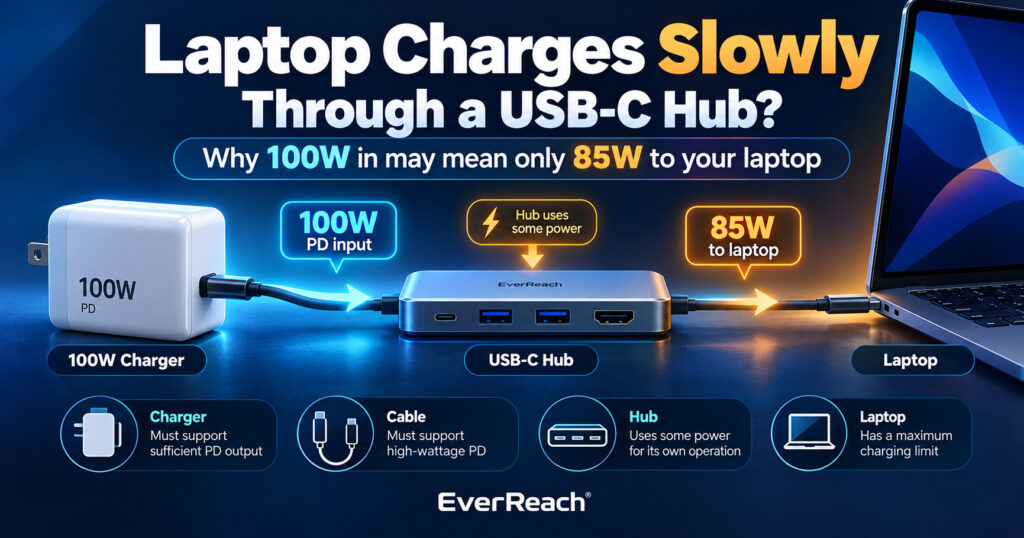
Research reviewed: September 25, 2026. USB-C charging depends on the laptop, charger, hub/dock, cable and negotiated USB Power Delivery profile. Product ratings and firmware can differ by model, so verify the exact specifications of every part in your charging path.
The hub may be reducing the power that actually reaches the laptop.
You plug a 100W charger into your USB-C hub.
The hub says “100W Power Delivery.”
So you expect your laptop to receive 100W.
But the battery charges slowly—or even drops while you are working.
Nothing may be broken.
The quick answer: A USB-C hub can accept more power than it passes to the laptop. The hub itself needs power, and its USB ports, Ethernet, card readers and other electronics may also have a power budget. Your final charging speed is limited by the weakest link among the charger, hub, cable and laptop.
The most important distinction: PD input is not necessarily laptop output
A hub advertised as having a 100W USB-C PD input may not deliver 100W to the computer.
For example, Anker’s current 332 and 555 USB-C hubs specify:
- up to 100W PD input; but
- up to 85W output to the laptop.
Anker explicitly states that the 555 reserves about 15W for the hub’s own operation. Other hubs can reserve a different amount. Some current Anker models use 10W internally and pass up to 90W instead.
100W charger → 100W hub input does not automatically mean 100W laptop charging.
If the hub reserves 15W, the laptop may receive no more than about 85W even before considering other limitations.
Think of charging as a chain
The usable charging power is controlled by the entire path:
Wall charger → USB-C cable → hub/dock → host cable → laptop USB-C port
The laptop can only negotiate what the chain can safely support.
| Part of the chain | What can limit charging |
|---|---|
| Charger | Total wattage, available USB PD profiles, and power sharing between multiple ports |
| Charger-to-hub cable | Its supported USB-C power rating |
| Hub / dock | Maximum PD input, maximum host output and power reserved for itself |
| Hub host cable | Built-in or removable cable rating |
| Laptop USB-C port | Whether it supports USB PD charging and the maximum power it accepts |
| Laptop workload | How much incoming power is consumed by the laptop before anything is left to charge the battery |
USB-C is only the connector shape
The USB Implementers Forum (USB-IF) explicitly warns that USB Type-C is not the same thing as USB Power Delivery. A USB-C device may support USB PD, USB4, USB 3.2, video output—or only some of those capabilities.
So a USB-C port on a hub can be PD input only, data only, data plus charging, video-capable, host connection only, or some combination supported by that exact product.
Do not assume every USB-C hole on the hub is interchangeable.
For a broader explanation, see our USB-C Compatibility Guide.
Example 1: a 65W charger through an 85W-capable hub
Suppose your hub can accept up to 100W and pass up to 85W to the laptop.
You connect a 65W charger.
The hub cannot somehow create another 20W. If the hub needs power for itself, the laptop will receive less than the charger’s full 65W.
A laptop designed around a 65W charger may therefore charge more slowly through that hub than when connected directly to its original 65W adapter.
Example 2: a 100W charger does not fix an 85W hub limit
Now connect a 100W charger to a hub whose maximum host output is 85W.
The hub can still deliver only up to 85W to the laptop.
Replacing the 100W charger with a 140W charger may change nothing if that hub accepts only 100W input. Anker explicitly documents this behavior on several hubs: even when a higher-powered charger is attached, the hub remains limited to its specified PD input and host-output ratings.
Example 3: the laptop is working harder than the charger can supply
Charging speed is not just about how many watts enter the computer.
The laptop itself is consuming power at the same time.
Imagine the laptop is receiving 60W through the hub while the CPU and GPU are busy, the display is bright, an external monitor is connected, external SSDs are active, and the battery is also expected to charge.
If the computer itself needs most or all of the incoming power, very little remains for the battery.
Apple documents the same principle for Mac laptops: a low-wattage source may provide enough power to operate the computer while providing too little additional power to charge the battery. During heavy workloads, the battery can even continue to drain if the computer uses more power than the charging source provides.
The cable can also limit charging
USB-C cables do not all have the same power capability.
USB-IF’s current certified-cable program uses power markings of 60W or 240W. USB PD Extended Power Range can deliver up to 240W with compatible equipment and cable.
This means a charging setup intended to deliver more than 60W needs a cable that supports the required higher-power operation.
Also remember that charging capability and data speed are separate specifications. A cable can support USB PD while carrying only USB 2.0 data, and a high-speed data cable is not automatically proof of the power level you need.
See our USB-C Cable Guide: 60W vs 240W, USB 2.0 vs USB4 for the details.
Why a multi-port charger can make the problem confusing
A charger labeled 100W may provide 100W only under a particular port configuration.
When another phone, tablet or accessory is connected, some multi-port chargers redistribute their total power budget between ports.
So your charging path may look like this:
100W charger → only 65W allocated to the hub → hub reserves power → laptop receives substantially less than expected.
Check the charger’s printed power-allocation table or official manual. Do not rely only on the largest wattage printed on the front of the charger.
For help choosing charger wattage, see How to Choose USB-C Charger Wattage: PD, PPS & GaN.
Why adding more hub devices can matter
The hub itself needs power even when nothing else is connected.
Then attached peripherals can require power too: external SSDs, USB flash drives, Ethernet controllers, SD cards, USB receivers, phones, webcams and other bus-powered USB devices.
How a particular hub allocates power depends on its design. Some products reserve a fixed amount for their internal operation; others have more complex power budgets.
This does not mean that plugging in an HDMI monitor directly consumes laptop-charging watts in a simple one-for-one manner. The hub’s electronics and attached bus-powered devices are what matter. Use the hub manufacturer’s documented PD input, host output and downstream-port power limits.
The fastest troubleshooting test: bypass the hub
- Disconnect the charger from the hub.
- Connect that same charger and cable directly to the laptop.
- Use the laptop under similar conditions.
- Compare the charging behavior.
If direct charging is clearly faster, the hub or the hub charging path is probably reducing the available power.
If direct charging is still slow, investigate the charger, cable, laptop power requirement, battery settings and workload before blaming the hub.
A practical troubleshooting sequence
| Step | What to check |
|---|---|
| 1 | What wattage does your laptop normally require? |
| 2 | What is the charger’s output on the specific port you are using? |
| 3 | Does the cable support the required wattage? |
| 4 | What is the hub’s maximum PD input? |
| 5 | What is the hub’s maximum host/laptop charging output? |
| 6 | How much power does the hub reserve for itself? |
| 7 | Does the laptop’s USB-C port actually support PD charging? |
| 8 | Does the laptop charge faster when the hub is bypassed? |
| 9 | Does charging improve when other charger ports or hub peripherals are disconnected? |
| 10 | Is the battery already near full, temperature-limited or intentionally holding charge? |
How much charger wattage should you buy for a pass-through hub?
Start with the laptop’s recommended charging wattage. Then check how much the hub keeps for itself.
| Laptop target | Hub reserve | Theoretical input needed | Reality check |
|---|---|---|---|
| 45W | 15W | 60W | A 65W charger may be sufficient if the hub supports that profile |
| 65W | 15W | 80W | A 90W or 100W charger gives more headroom |
| 85W | 15W | 100W | A 100W charger can reach the hub’s 85W host limit |
| 100W | 15W | 115W | A hub capped at 85W can never deliver the full 100W, regardless of charger size |
Illustrative examples only. USB PD charging is negotiated, not a simple subtraction formula in every product. Always use the actual hub input/output specifications and supported PD profiles.
What about 140W, 180W and 240W USB-C charging?
USB PD is no longer limited to 100W.
USB-IF says USB Power Delivery Extended Power Range supports fixed voltages that allow up to 140W, 180W and 240W.
But every part of the chain has to support the required mode. A 240W-capable charger does not make an older 100W hub into a 240W dock.
The charger, cable, hub/dock and laptop must all support the required power level.
Mac users: check the wattage macOS actually sees
Apple provides a useful diagnostic on Mac laptops.
Open:
Apple menu → System Information → Power → AC Charger Information
Apple says this section can show the wattage being provided by the connected power adapter or display.
On newer macOS versions, the system may also display “Slow Charger” when the delivered wattage is too low for the Mac model.
Slow charging is not always a hub problem
- Battery protection: the operating system may pause charging or maintain a charge limit.
- Battery temperature: charging may be reduced under unfavorable thermal conditions.
- High battery percentage: charging commonly slows as the battery approaches full.
- Heavy workload: more incoming power is consumed by the computer itself.
- Battery health: an aging or faulty battery can behave differently from a healthy one.
This is why the direct-charging comparison is so useful: it separates the hub from the rest of the charging system.
Before buying a USB-C hub for laptop charging
Do not buy based only on a large “100W PD” badge.
Look specifically for:
- PD input: maximum power the hub accepts from the charger;
- host PD output: maximum power the laptop can actually receive;
- hub reserve: how much power is kept for hub operation;
- charger included or not;
- cable requirements;
- USB-C host-port requirements;
- display compatibility; if you need HDMI or DisplayPort;
- data speeds; for SSDs and other high-speed devices; and
- operating-system limitations; especially for multiple displays.
Ignore the biggest wattage printed on the box until you know whether it means input to the hub or output to the laptop.
Frequently Asked Questions
Why does my laptop charge slower through a USB-C hub?
The hub may reserve some of the incoming power for itself, so the laptop receives less wattage than when the charger is connected directly. The charger, cable, hub output limit and laptop can all further limit charging.
Does a 100W USB-C hub charge my laptop at 100W?
Not necessarily. “100W” may describe the hub’s PD input. For example, several Anker hubs accept 100W but pass only 85W to the laptop because the hub reserves about 15W for operation.
Will a 140W charger make my 100W hub charge faster?
Not if the hub itself accepts only 100W or has a lower host-output limit. The hub cannot pass more power than its design allows.
Can a 60W cable slow laptop charging?
Yes, if the charging setup needs more than 60W. USB-IF’s current certified USB-C cable markings distinguish 60W and 240W power capability. Use a cable rated for the power your setup requires.
Why does the battery drop even though the laptop says it is charging?
The laptop may be consuming more power than the charging path is providing. In that situation, incoming power can reduce the rate of battery drain without being enough to increase the battery percentage.
Can plugging more devices into the hub slow charging?
It can, depending on the hub’s power architecture and the downstream devices. Bus-powered SSDs, phones and other peripherals consume power. Check the hub manufacturer’s host-output and peripheral-power specifications instead of assuming a fixed behavior for every hub.
Should I connect the charger directly to the laptop instead?
If maximum charging speed is more important than single-cable convenience, direct charging can remove the hub’s power overhead and output limit. The hub can still be used for data and displays if your laptop has another suitable USB-C or Thunderbolt port.
The EverReach Bottom Line
A USB-C hub does not simply forward every watt from your charger to your laptop.
When charging is slow, check the system in this order:
- Laptop charging requirement
- Charger output on the actual port being used
- Cable power rating
- Hub PD input
- Hub host/laptop output
- Hub power reserve
- Laptop workload and battery behavior
And remember the simplest diagnostic test:
Connect the same charger and cable directly to the laptop.
If charging immediately improves, you have learned something important about the hub charging path.
USB-C tells you the connector. The specifications tell you what it can actually do.
Sources and Further Reading
- USB-IF: USB Charger (USB Power Delivery) — USB PD capabilities, including Extended Power Range up to 240W.
- USB-IF: Cables and Connectors — current 60W and 240W USB-C certified cable power markings.
- USB-IF: USB Type-C Language and Packaging Guidelines — explains that USB Type-C, USB PD, USB4 and USB 3.2 are separate capabilities.
- Anker 555 USB-C Hub (8-in-1) — manufacturer example specifying 100W PD input and 85W laptop output, with 15W reserved for hub operation.
- Anker 332 USB-C Hub (5-in-1) — current manufacturer specifications showing 100W PD input and 85W host output.
- Anker: How to Choose the Right USB-C Hub — manufacturer explanation of laptop charging requirements and hub pass-through power.
- Apple Support: Charge your Mac laptop computer — slow-charger behavior and minimum charging wattage guidance.
- Apple Support: Use a power adapter with your Mac — how to check the wattage delivered to a Mac.
- EverReach: How to Choose USB-C Charger Wattage: PD, PPS & GaN.
- EverReach: USB-C Cable Guide: 60W vs 240W, USB 2.0 vs USB4.
- EverReach: USB-C Compatibility Guide.
Editorial disclosure: EverReach may earn a commission from qualifying purchases made through affiliate links, at no extra cost to you. Affiliate relationships do not determine our conclusions. Manufacturer products are cited here to demonstrate documented USB-C power behavior and are not EverReach product endorsements.
About the Author
Noah Evermore writes research-based buying guides for EverReach, focusing on technology, compatibility, practical value and the Philippine consumer context.